
Postcode checker
This feature is available on the Advanced and Unlimited plan
The postcode checker lets you restrict local delivery locations based on the customer's postcode. When enabled, customers must enter their postcode before the delivery location selector is shown. Only locations that cover their area will be available.
This is useful when you serve different zones from different hubs, or when some locations only deliver to specific postcodes.
Enable the postcode checker
Navigate to Settings > Locations and scroll to the Local Delivery section. You will see a Postcode checker section at the bottom of the card.
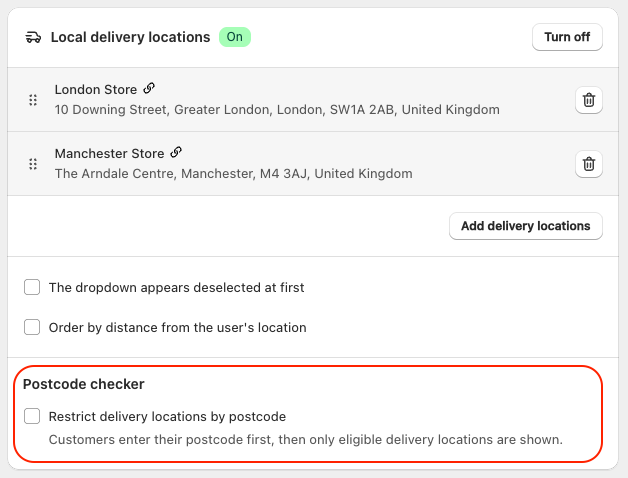
Check "Restrict delivery locations by postcode" to enable the feature.
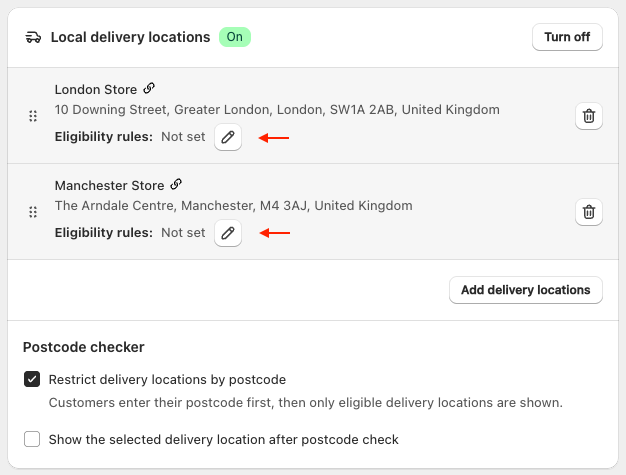
Once enabled, each delivery location will show an Edit eligibility rules link. You must set eligibility rules for every location before you can save. The app will warn you if any locations are still missing rules.
Set eligibility rules for a location
Click Edit eligibility rules next to a location to open the eligibility modal. You can choose one of two rule types for each location:
- Match by postcode: the location is offered when the customer's postcode matches one of the rules you define.
- Fallback location: the location is used as a catch-all when no other location matches. Only one location can be set as the fallback.
- Minimum order amount (optional): the cart total is validated a checkout against this amount.
Match by postcode
Select Match by postcode and enter your postcodes in the text area, one per line. You can also paste a comma-separated list or paste directly from a spreadsheet.
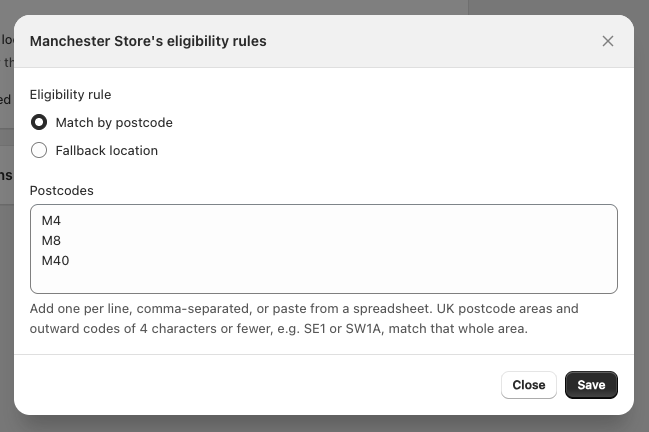
The format depends on your store's country:
UK-style postcodes (GB, Guernsey, Isle of Man, Jersey)
Enter full postcodes (e.g. EC1A 1BB) or outward codes of up to 4 characters (e.g. SE1, SW1A). An outward code matches the entire postcode area — SE1 matches SE1 0RB, SE1 2AB, etc., but not SE10 2AB.
Alphanumeric postcodes (Canada, Ireland, Malta, Netherlands, etc.)
Enter full postcodes or use * to match the first part of a postcode. For example, SE1* matches SE1 0RB but not SE10 2AB.
Numeric postcodes (US, France, Germany, etc.)
Enter full postcodes or use * to match a prefix — 94* matches all postcodes starting with 94. Use .. for ranges — 94000..94499 matches all postcodes from 94000 to 94499
Each location can hold up to 250 postcode rules. If the same postcode is entered for two locations, the app will flag the conflict and prevent saving.
Fallback location
Select Fallback location if you want this location to be offered when the customer's postcode doesn't match any other location's rules.
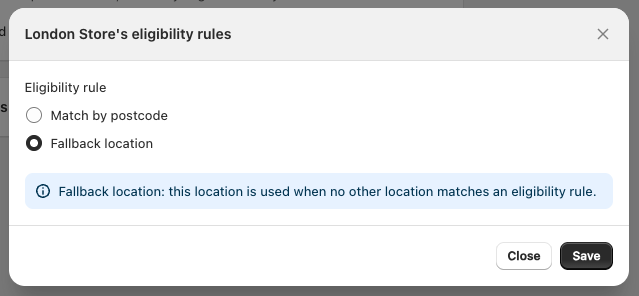
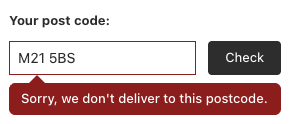
This is optional. If no fallback is set and no rules match, the customer will see an error message in the widget.
Minimum order amount (optional)
You can set a minimum order amount if needed for this delivery method. At checkout, the cart subtotal is validated (after discounts), if the threshold is not met, the customer is prompted to go back and add more products or choose a different delivery method.

You can edit the wording: Edit validation errors.
Delivery areas
If you need different local delivery prices for different postcodes within the same location, you can split a delivery location into delivery areas. Each delivery area has its own name and technical checkout rate ID, and matches customers either by postcode list or by distance from the location (see Delivery areas by distance).
For example, a Manchester location could have:
- City centre for postcode M1
- Salford for postcode M5
When the customer enters a postcode that matches a delivery area, Buunto keeps the same delivery location selected but also records the matched area. At checkout, the delivery option can then show both the location and the area, for example:
Local delivery - Manchester - City center (Friday 26 June)
If you use Checkout delivery options sync, each delivery area needs its own Shopify rate using the exact technical ID shown in Buunto, for example:
BUUNTO_DELIVERY_AREA_123456
When a postcode matches a delivery area, Buunto first looks for the matching area rate at checkout. If that rate is not present in Shopify, it falls back to the location-specific local delivery rate (BUUNTO_LOCAL_DELIVERY_<locationId>), then to the generic local delivery rate (BUUNTO_LOCAL_DELIVERY), then to your configured fallback area or fallback location rate. Distance areas use the same rates and the same fallback order.
This means you only need to create delivery area rates when you want different prices per area. If you want unmatched postcodes, or missing area/location/method rates, to use a catch-all option, set a Fallback location or Fallback area explicitly.
Delivery areas by distance
Instead of listing postcodes, a delivery area can cover every postcode within a set distance of its location. For example, a London location could have:
- Central London: within 3 miles
- Inner London: within 8 miles, minimum order £30
- Greater London: within 15 miles, minimum order £50

Add a distance area
- Under the delivery location, click Add delivery area.
- Enter the area name.
- Select Match by distance from this location.
- Enter the Maximum distance and choose km or mi. New areas start in the unit usually used in the location's country, and each area keeps the unit you entered it in.
- Optionally set a Minimum order amount, then click Save.

Buunto measures from the location's address, so that address must be one Buunto can locate. If it can't, the modal shows a warning: check the location's address in Shopify or in Buunto.
How Buunto picks the area
When a customer checks their postcode:
- Areas defined by a postcode list are matched first. If one matches, it is used.
- Otherwise, Buunto locates the postcode and measures the straight-line distance from each location that has distance areas to the centre of that postcode.
- It picks the nearest of those locations that delivers there, then that location's smallest area containing the postcode.
- If no area contains it, your fallback area or fallback location is used, if you set one. Otherwise the customer sees "Sorry, we don't deliver to this postcode."
Distances are straight lines ("as the crow flies"), not road distances. Some postcodes cover a large area, such as rural US ZIP codes or French postcodes, and are measured from their centre. Allow a margin around your real delivery limit.

At checkout
Buunto checks that the shipping address uses the same postcode the customer checked in the widget (upper or lower case and spaces don't matter). If it doesn't, checkout shows the postcode mismatch error, which you can change with your other validation errors (Edit validation errors).
Each distance area has its own technical ID, for example BUUNTO_DELIVERY_AREA_340984. To charge a different price per area, create a Shopify rate with that exact name, as for postcode areas. The delivery option at checkout then shows the location and the area, for example:
Local delivery - London Store - Inner London (Friday 16 October, 9am - 11am)

Limits
- The maximum distance can be up to 1,000 km (621 mi).
- Distance areas are part of the postcode checker, available on the Advanced and Unlimited plans.
Show the selected delivery location
After a customer checks their postcode, you can optionally display the matched delivery location alongside the confirmed postcode. Enable this with the "Show the selected delivery location after postcode check" checkbox.
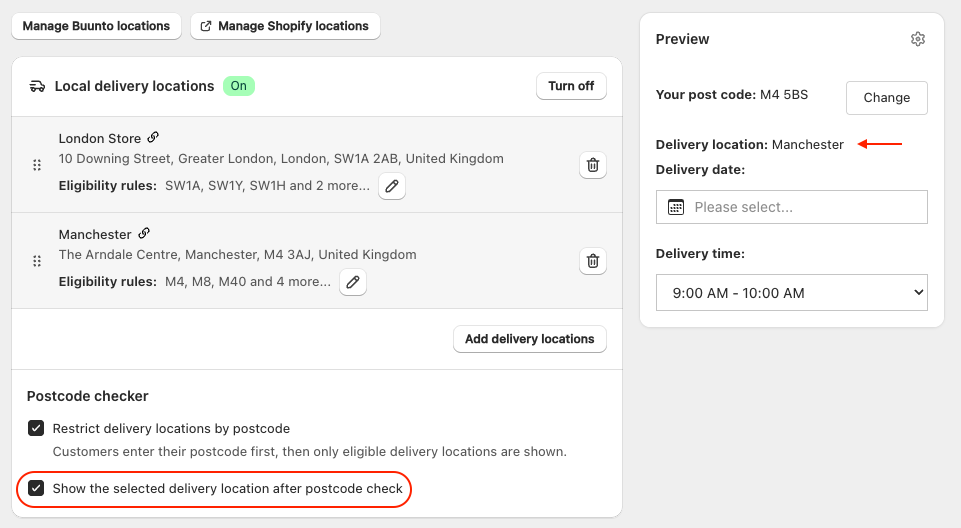
How it looks in the widget
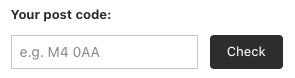
When the postcode checker is enabled, customers see a postcode input field before the date picker. They type their postcode and click Check.
If a matching location is found, the postcode is confirmed and the date picker loads for that location. A Change button lets them re-enter their postcode if needed.
If no matching location is found (and no fallback is set), an error message is shown. The customer can correct their postcode and try again.
If you use delivery areas by distance, a postcode that isn't in any of your postcode lists takes a moment to check, and the Check button pulses while Buunto locates it. If the postcode can't be located, for example because of a typo, the customer sees "Sorry, we couldn't locate this postcode." Your fallback area or location is not used in that case.

The widget remembers the checked postcode between page visits, so returning customers do not need to re-enter it.
Customise the widget labels
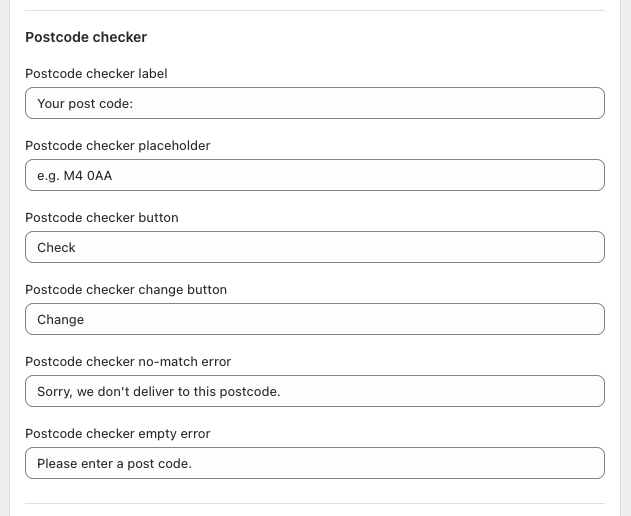
You can change the postcode checker's label, placeholder text, button labels, and error messages from Settings > Messages > Local Delivery. Look for the Postcode checker group. If you use delivery areas by distance, the group also has a Postcode checker not-located error, shown when a postcode can't be located.
Tip: Set the placeholder text to a real example postcode for your region so customers know the expected format. For example, use
e.g. EC1A 1BBfor UK stores,e.g. 94103for US stores, ore.g. M5V 2T6for Canadian stores.
Notes
Note: The postcode checker only applies to the Local Delivery method. It has no effect on Store Pickup or Shipping.
Note: The postcode checker works alongside Custom settings. If you use custom settings with different delivery locations, the postcode rules must cover all locations across all your settings before you can save.
Note: Delivery areas by distance measure a straight line from the location to the centre of the customer's postcode. The postcode is looked up in the location's country.