
Checkout delivery options sync
Checkout delivery options sync integrates Buunto's delivery methods directly into your Shopify checkout. Instead of showing generic shipping rate names, your customers will see clear, descriptive labels that reflect their actual selection — including the delivery method, date, time slot, and location.
For example:
- Local delivery – North Hub (Friday 13 February, 11am - 12pm) - £8.00 - £8.00
- Store pickup – London Store (Tuesday 17 February, 9am - 10am) - FREE
- Standard - £5.00 (unchanged for regular shipping)
This feature supports Local delivery, Store pickup, and Shipping methods configured in Buunto. Labels are automatically localised based on the customer's language.
Note: This feature is currently in Beta.
Step 1 – Activate the Shopify Function
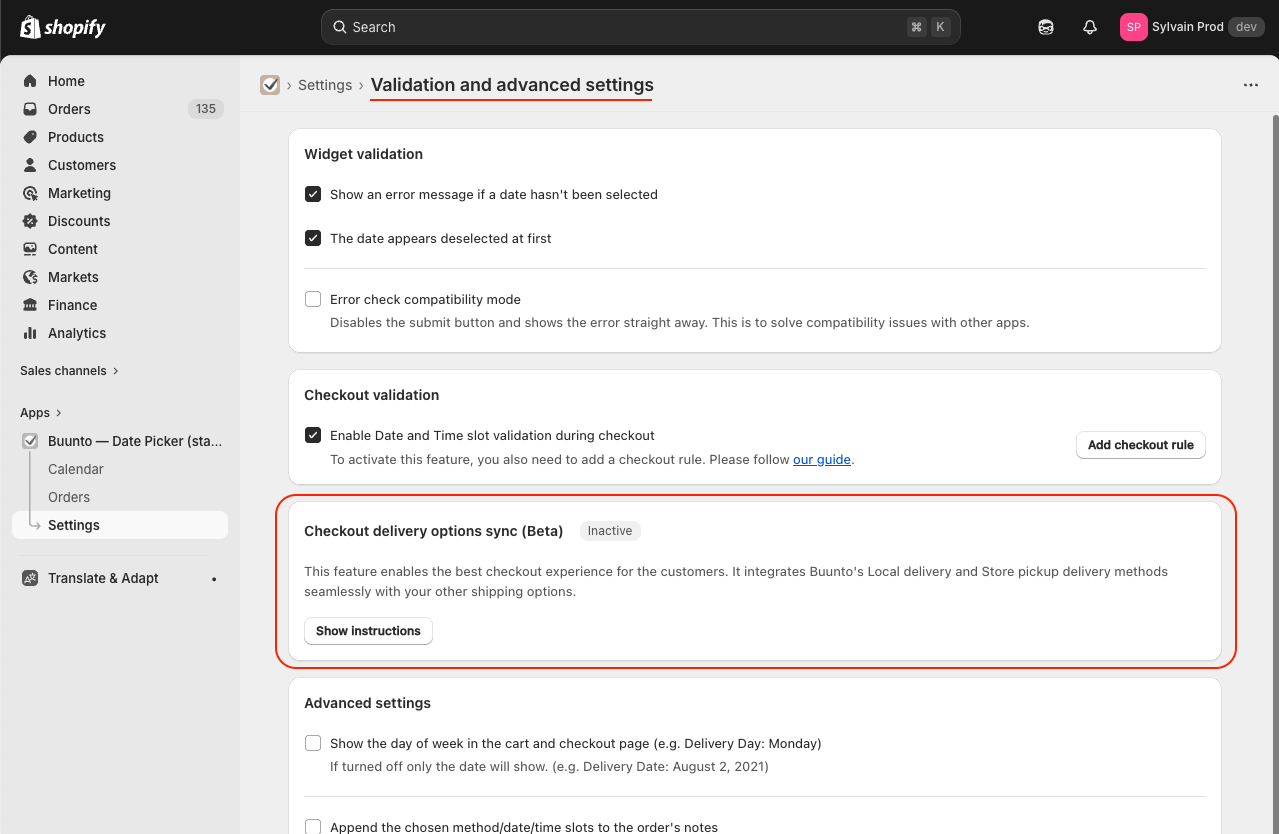
- In the Shopify admin, go to Apps > Buunto > Settings > Validation and advanced settings
- Scroll down to the Checkout delivery options sync card
- Click Show instructions, then click Activate Shopify Function
The status badge will change from "Inactive" to "Active".
Step 2 – Navigate to your shipping rates
Does your store use shipping options in Markets? If Settings > Shipping and delivery shows Shipping has moved to Markets, follow Checkout delivery options sync with Shopify Markets instead of steps 2 to 4, then come back to Step 5.
1. In the Shopify admin, go to Settings > Shipping and delivery
2. Click on General profile

3. Scroll down to your Shipping zones and click Add shipping option

Step 3 – Add the Buunto delivery rates
You need to add custom shipping rates that Buunto will recognise and replace at checkout. For each rate:
- Name: Buunto's custom rate name for Local Delivery, Store Pickup, or Shipping (if applicable)
- Rate type: Use "Flat" or "Order amount" depending on your needs
- Price: Your desired rate price or leave empty (€0) if free delivery is available
- Transit Time: Set it to "None"
You only need to add the rates for the delivery methods you use in Buunto.
Add a Local delivery rate
- Set the custom rate Name to exactly:
BUUNTO_LOCAL_DELIVERY - Set the price to whatever you charge for local delivery (e.g. €8.00).

Add a Store pickup rate
- Set the custom rate Name to exactly:
BUUNTO_STORE_PICKUP - Set the price to €0.00 (free) or whatever you charge for store pickup.

Result
Once both rates are added, your shipping zone should look like this:
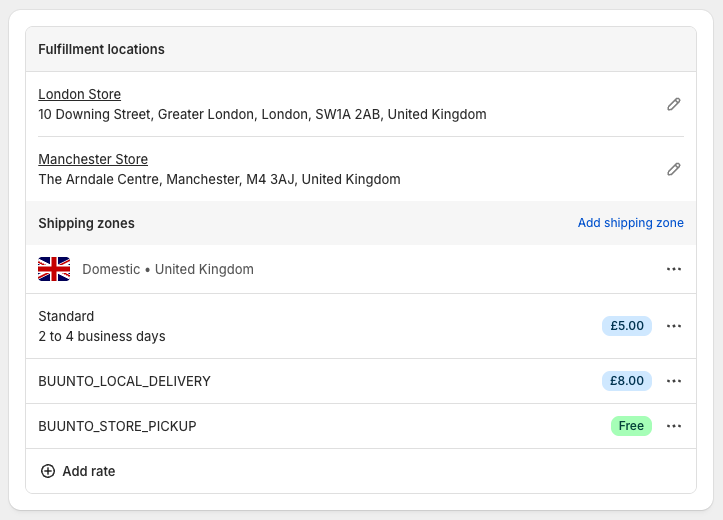
Tip: You can set a price for these rates if appropriate. At checkout, these technical names are automatically replaced with the customer's delivery selection.
Step 4 – (Optional) Add location-specific rates
If you have multiple locations and want to set different prices for each one, you can add location-specific rates. These take priority over the generic rate when a customer selects that specific location.
The location IDs are shown in the activation instructions within Buunto's settings:

Use the format: BUUNTO_LOCAL_DELIVERY_<locationId>
For example, to charge £10.00 for delivery from a specific hub, add a rate with the exact name shown (e.g. BUUNTO_LOCAL_DELIVERY_65719369926 ):

At checkout, the customer will see the location-specific price:
Local delivery – London (Friday 20 February, 9am - 10am) — £5.00

Tip: You only need to add location-specific rates for locations where pricing differs from the generic rate (
BUUNTO_LOCAL_DELIVERYorBUUNTO_STORE_PICKUP). Locations without a specific rate will fall back to the generic one.
Add delivery area rates
If you use postcode checker delivery areas and want different prices for each area, add one Shopify rate per delivery area.
The delivery area IDs are shown in Buunto's location settings, next to each delivery area. Use the format: BUUNTO_DELIVERY_AREA_<areaId>
For example:
BUUNTO_DELIVERY_AREA_123456

When a customer's postcode matches a delivery area, Buunto first looks for the matching BUUNTO_DELIVERY_AREA_<areaId> rate at checkout. If that rate is not present in Shopify, it falls back to BUUNTO_LOCAL_DELIVERY_<locationId> , then to BUUNTO_LOCAL_DELIVERY , then to the configured fallback area or fallback location rate.
Tip: You only need delivery area rates for areas where pricing differs from the location-specific, generic, or fallback local delivery rate.
Step 5 – (Recommended) Deactivate Shopify's built-in delivery options
Warning: If your store has active Shopify Subscriptions contracts using Shopify’s native Local Delivery or Local Pickup, do not deactivate these options. Shopify might otherwise fail to create future renewal orders.
If you have Shopify's built-in Local delivery or Local pickup options enabled, Buunto can automatically hide conflicting ones at checkout. For example, when a customer selects Local delivery in Buunto, any native Local pickup options from Shopify are hidden, and vice versa.
This behaviour is controlled by the Hide conflicting native delivery options checkbox, which is enabled by default.

Buunto cannot rename Shopify's built-in delivery options — only the custom Buunto rates (BUUNTO_LOCAL_DELIVERY , BUUNTO_STORE_PICKUP , etc.) are replaced with descriptive labels. Recommended: If you don't need the built-in options, we recommend deactivating them entirely in Settings > Shipping and delivery under each fulfillment location for the cleanest checkout experience.
Note: If you use another subscription app, check with its support team before disabling Shopify’s built-in delivery options. Ask whether existing subscription contracts depend on these options.
Tip: If you rely on Shopify's built-in local delivery zones (by radius or postcode) to charge different rates based on distance, keep the built-in Local delivery option active and leave the checkbox enabled — Buunto will hide it only when it conflicts with the customer's selection.
Important: Always create new rates with the
BUUNTO_names rather than renaming existing rates. Shopify may cache shipping rates, and a renamed rate can sometimes still appear with its old name at checkout. Creating a fresh rate and deleting the old one avoids this issue entirely.
Step 6 – Test the checkout experience
Add a product to the cart and go through the checkout to verify the delivery options are displayed correctly.
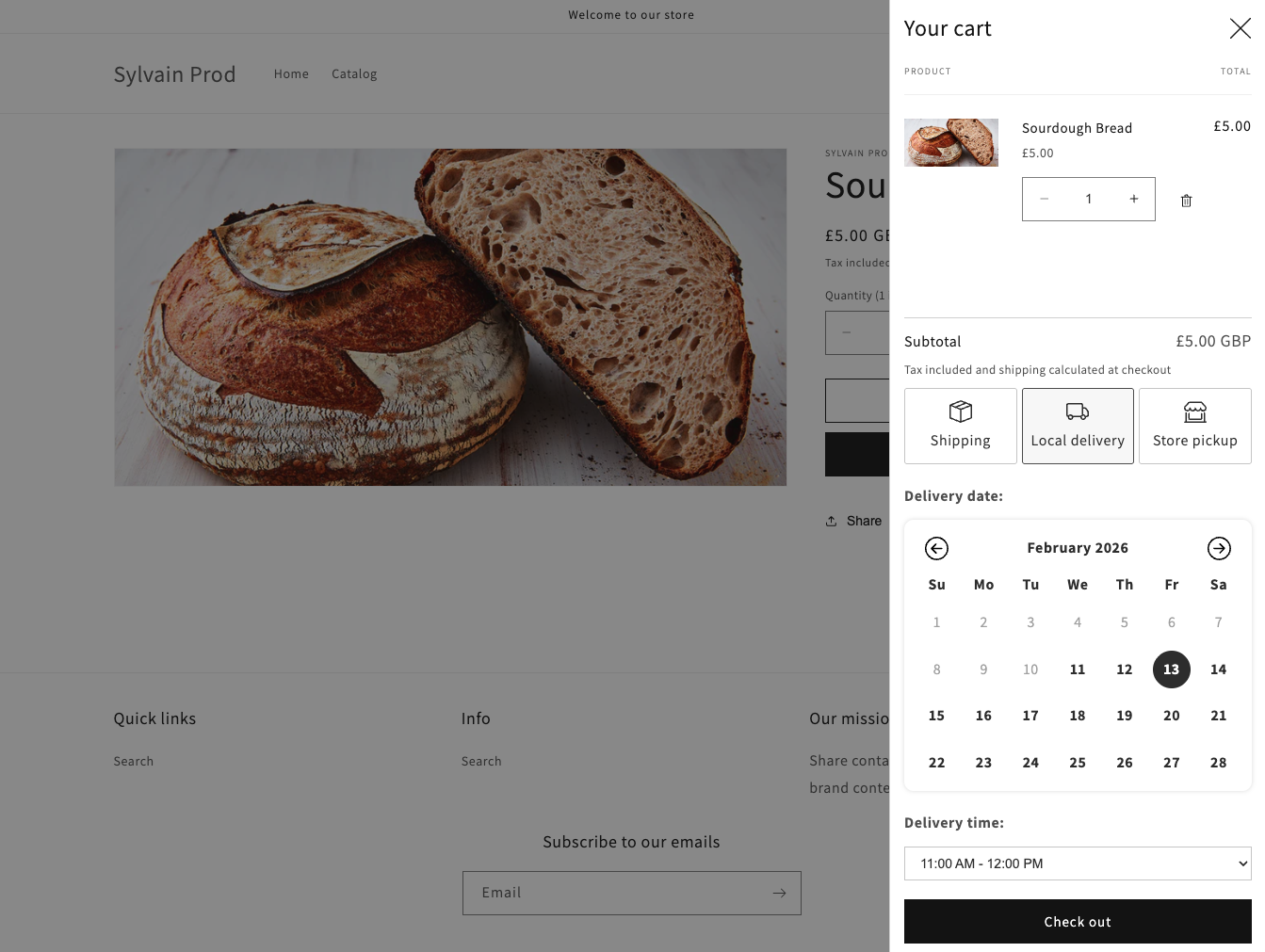
Local delivery
When a customer selects Local delivery in Buunto and picks a date and time slot:
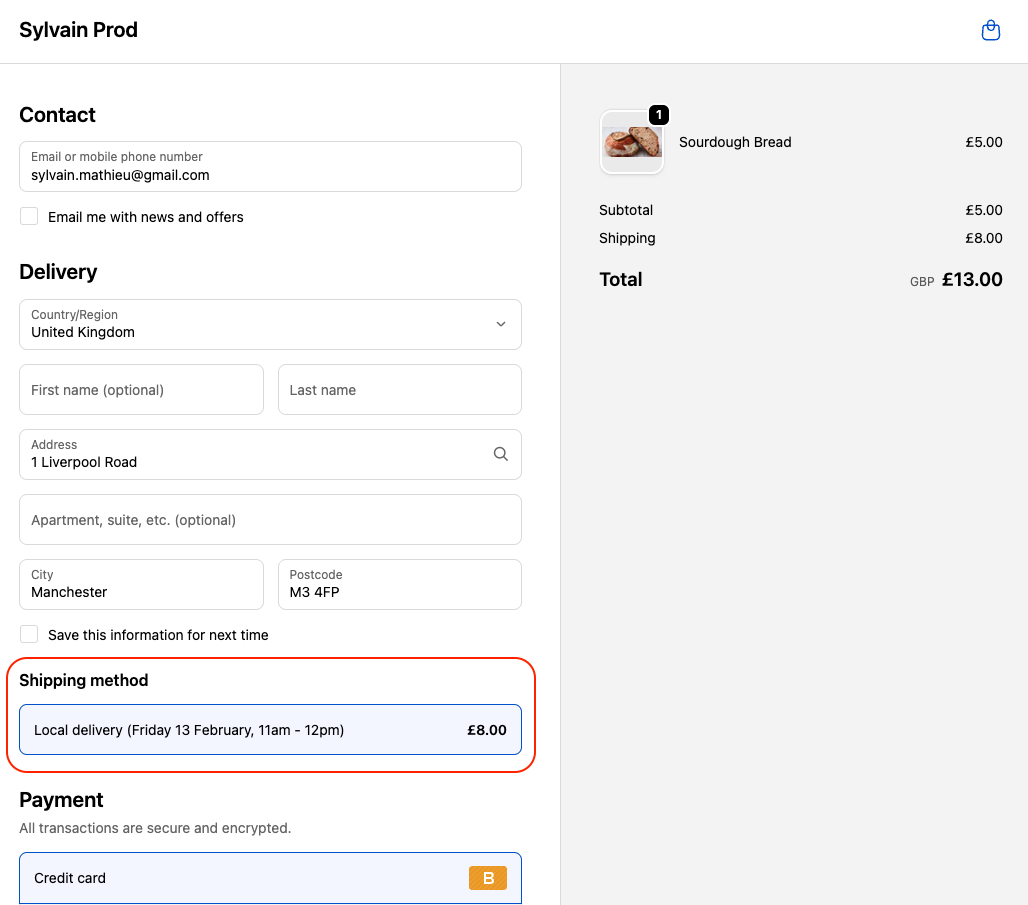
At checkout, the shipping method shows the selected date and time:
Local delivery (Tuesday 13 February, 11am - 12pm) — £8.00
Store pickup
When a customer selects Store pickup and chooses a location and date:
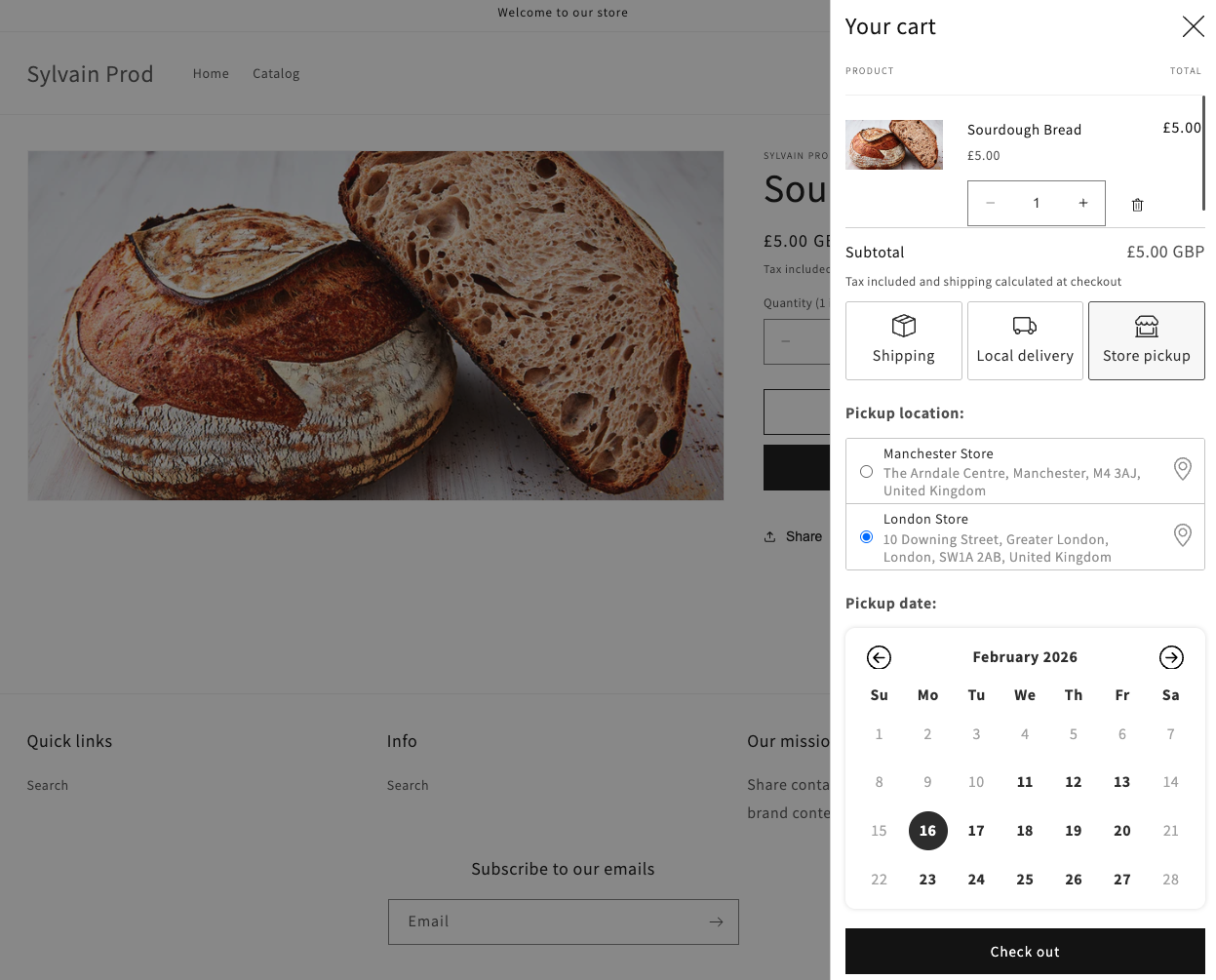
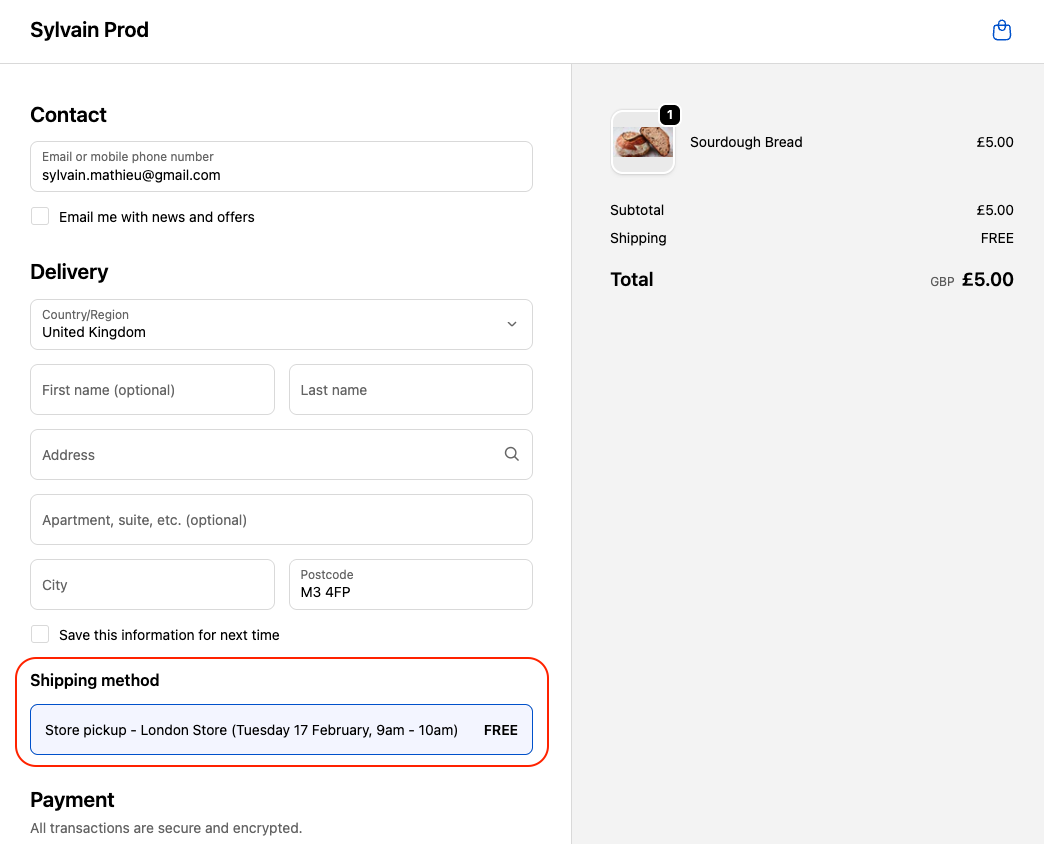
At checkout, the shipping method shows the location, date, and time:
Store pickup – London Store (Tuesday 17 February, 9am - 10am) — FREE
Shipping
When a customer selects Shipping without any specific date/time:
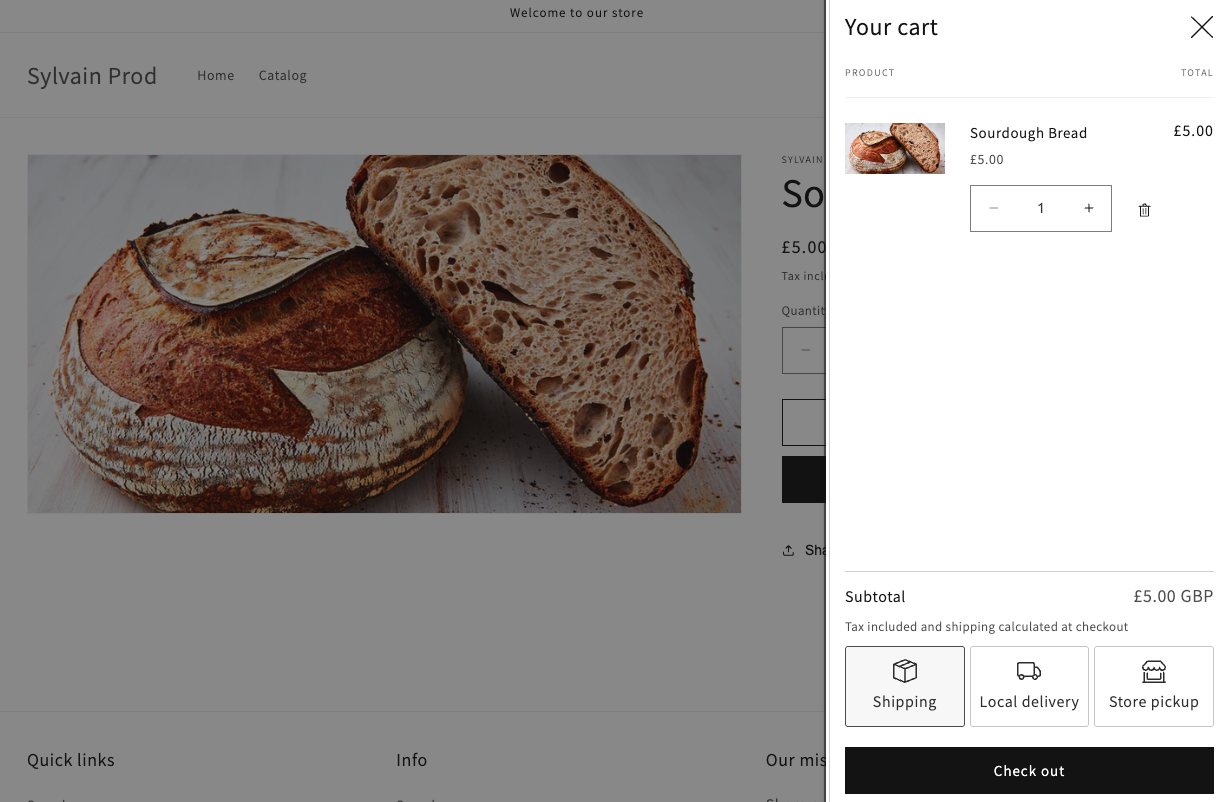
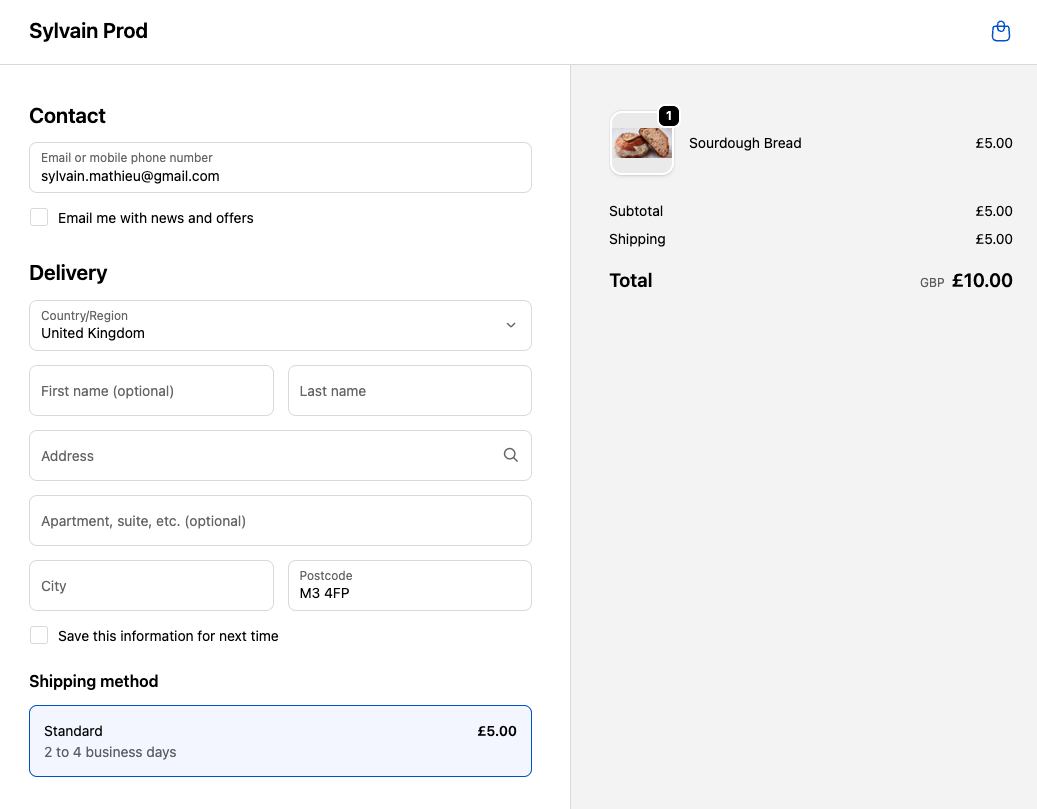
At checkout, the standard shipping option is shown as-is — it is not modified by Buunto:
Standard — £5.00
Deactivating the feature
If you need to deactivate the delivery options sync:
1. First, remove all Buunto rates (BUUNTO_LOCAL_DELIVERY , BUUNTO_STORE_PICKUP , any BUUNTO_STORE_PICKUP_<locationId> rates, any BUUNTO_LOCAL_DELIVERY_<locationId> rates, and any BUUNTO_DELIVERY_AREA_<areaId> rates) from your shipping zones in Settings > Shipping and delivery > General shipping rates.
2. Then, go to Apps > Buunto > Settings and click Deactivate on the Checkout delivery options sync card
Important: Remove the Buunto rates before deactivating the function. Otherwise, customers will see the technical rate names (
BUUNTO_LOCAL_DELIVERY,BUUNTO_STORE_PICKUP,BUUNTO_STORE_PICKUP_<locationId>,BUUNTO_LOCAL_DELIVERY_<locationId>,BUUNTO_DELIVERY_AREA_<areaId>) at checkout.
FAQ
Do I need to add rates for all delivery methods?
No. You only need to add rates for the delivery methods you have configured in Buunto. For example, if you only use Local delivery, you only need to add the BUUNTO_LOCAL_DELIVERY rate. Similarly, location-specific rates (e.g. BUUNTO_LOCAL_DELIVERY_<locationId> or BUUNTO_STORE_PICKUP_<locationId> ) are only needed if you want different pricing per location. Delivery area rates (BUUNTO_DELIVERY_AREA_<areaId> ) are only needed if you use postcode checker delivery areas and want different pricing per area. If an area rate is missing, Buunto falls back to the location-specific local delivery rate, then to the generic local delivery rate, then to the configured fallback area or fallback location rate.
Will this affect my existing shipping rates?
No. Your existing shipping rates (like "Standard") will continue to work as before. Buunto only modifies the rates that use the special BUUNTO_LOCAL_DELIVERY , BUUNTO_LOCAL_DELIVERY_<locationId> , BUUNTO_DELIVERY_AREA_<areaId> , BUUNTO_STORE_PICKUP , and BUUNTO_STORE_PICKUP_<locationId> names.
Are the labels translated for international customers?
Yes. The delivery option labels are automatically localised based on the customer's browser language. The date format also adapts to the customer's country (e.g. day/month for the UK, month/day for the US).
What happens if a customer hasn't made a selection in Buunto?
If no selection has been made, the Buunto delivery rates will be hidden at checkout. Only your standard shipping options will be shown.
What happens to my Buunto rates when Shopify upgrades my store?
According to Shopify, your shipping rates don't change when your store is upgraded: you just manage them in Markets. After the upgrade, open Buunto's Locations settings to check that every location still shows its shipping option. To add or change Buunto rates after the upgrade, follow Checkout delivery options sync with Shopify Markets.