
Set a delivery date on draft orders
When your team takes orders by phone, by email or at an event, they usually create a draft order in Shopify, then send the invoice or collect payment. You can set the Buunto date on the draft order first, so the order arrives in Buunto with its date, time slot and location, just like an order from your online store.
Before you start: approve the Draft orders permission
Buunto needs a new permission to edit draft orders. Until it's approved, Set Buunto date shows this message:

To approve it, open Buunto from your Shopify admin (Apps > Buunto). Click Authenticate, then Update on the next screen. If you can't approve it, ask the store owner or a staff member who can manage apps.

Set the date on a draft order
- Create the draft order, add the products and the customer, then click Save. Shopify only shows app actions on saved draft orders.
-
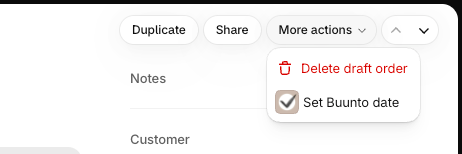
Click More actions > Set Buunto date.
-
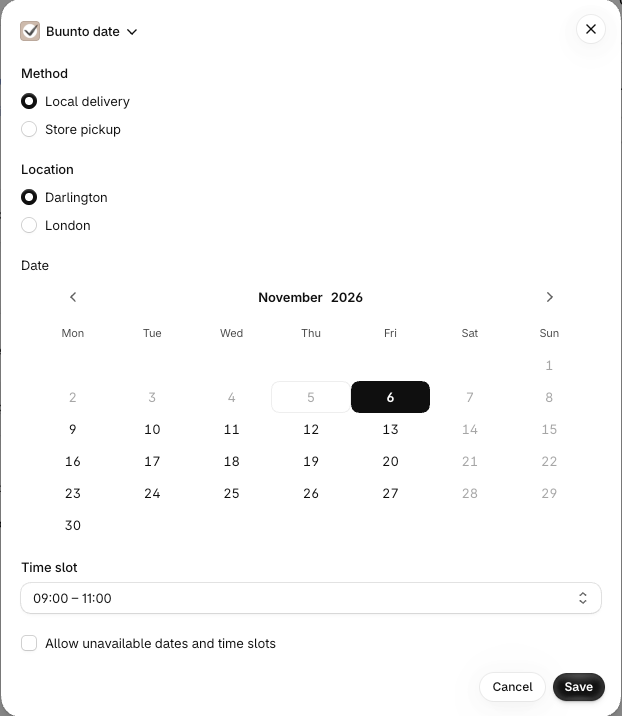
Choose the method, location, date and time slot, then click Save. Only the dates your settings allow for these products are offered: cut-off times, preparation time, closed days and order limits all apply. To go beyond these rules, see Booking an unavailable date or time slot below.
-
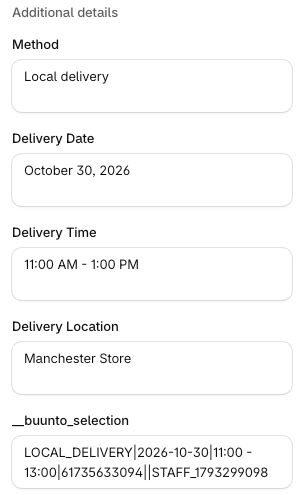
Check that the date now appears under Additional details.
- Send the invoice or collect payment as usual.
To change the date, open Set Buunto date again and save a new one. Once the order is created, change it from Orders in Buunto, as for any other order.
Booking an unavailable date or time slot
Sometimes your team needs to accept an order your settings would refuse, for example a same-day pickup after the cut-off, or one more order on a sold-out day. In Set Buunto date, tick Allow unavailable dates and time slots to pick it anyway. Only your staff can do this: your online store keeps following your settings.

With the box ticked:
- You can pick any date from today up to a year ahead, including closed days and sold-out dates.
- Time slots that are past their preparation time, sold out or disabled for that date are listed too.
- A warning tells you when your pick is normally unavailable. For a date, it also says why.
- If your time slots are mandatory, you still need to pick one. Otherwise you can choose No time slot.
Mark as paid and the invoice checkout accept the date without a business rules warning. If you use local delivery locations, they still warn you when the postcode belongs to another location.
Things to know
"A delivery date is required" on the draft order page
Shopify can show this banner at the top of the draft order even after you've set the date, because it checks the draft without its Buunto date there. You can ignore it once the date appears under Additional details.

Collecting payment by credit card
When you choose Collect payment > Credit card, Shopify shows an "Unresolved business rules" popup, even when the date is set. Click Ignore and create order, then enter the card details. The order keeps its Buunto date, and you only enter the card once.

Mark as paid and the invoice link check the Buunto date properly: they only warn you if the date is missing or no longer fits the order.
Sending the invoice
Shopify sends the invoice even when no Buunto date is set, and your customer is then stopped at checkout with "A delivery date is required". Set the date before sending the invoice. If you forgot, just set it now: the link you already sent picks it up, so there's no need to send the invoice again.
Adding products after setting the date
The date you set has to suit every product in the draft order. If you add a product later that has its own rules, for example one that needs a time slot or is only available on certain days, the saved date may no longer work.
So after adding products, click Save on the draft order (Shopify greys out Set Buunto date while there are unsaved changes), then open Set Buunto date again. If something needs changing, a message tells you what, for example "This order's products now need a time slot". Update the date or time slot and click Save.
If you skip this, Mark as paid and the invoice checkout show the business rules warning until it's fixed. Credit card payments don't warn you, so check before charging the card.
Paying later
Buunto checks the date against your settings at the moment you save it. If the draft is paid a few days later, the order keeps that date even if the cut-off has passed or the day has filled up since. Save the date again just before collecting payment if you want to be sure it's still available.
Choosing the location
Set Buunto date doesn't look at the customer's address, so choose the location that delivers to it. If you use local delivery locations, Mark as paid and the invoice warn you when the postcode belongs to another location.
Delivery surcharges
Buunto's delivery surcharge products aren't added to draft orders. Add the shipping or delivery charge to the draft order yourself.
If you have any questions, don't hesitate to contact our support team. We'll be happy to help!